
Post Type Templates
The Anchor system caters for 4 different post types, namely:
- Posts (Default WordPress Blog/News archive)
- Careers
- Team Members
- Projects
Each of these post types may be used for a distinct purpose; with Anchor providing different customisation options for each of the post types.
In order to tweak the design of any of these post types, navigate to ‘Theme Options > Post Type Templates’.
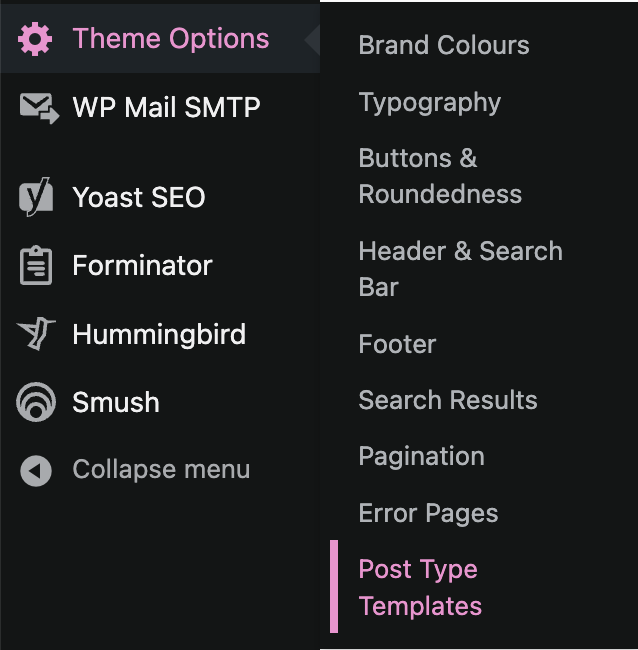
As with other Theme Option sections, once changes are made, administrators will need to click on the ‘Update’ button at the top-right of the screen in order to apply these alterations to the frontend.
Posts
The ‘Posts’ accordion section allows administrators to set the style for individual news articles.
This section is split into two sub-sections, allowing configuration of the post banner, as well as the actual content section, as per the below image.
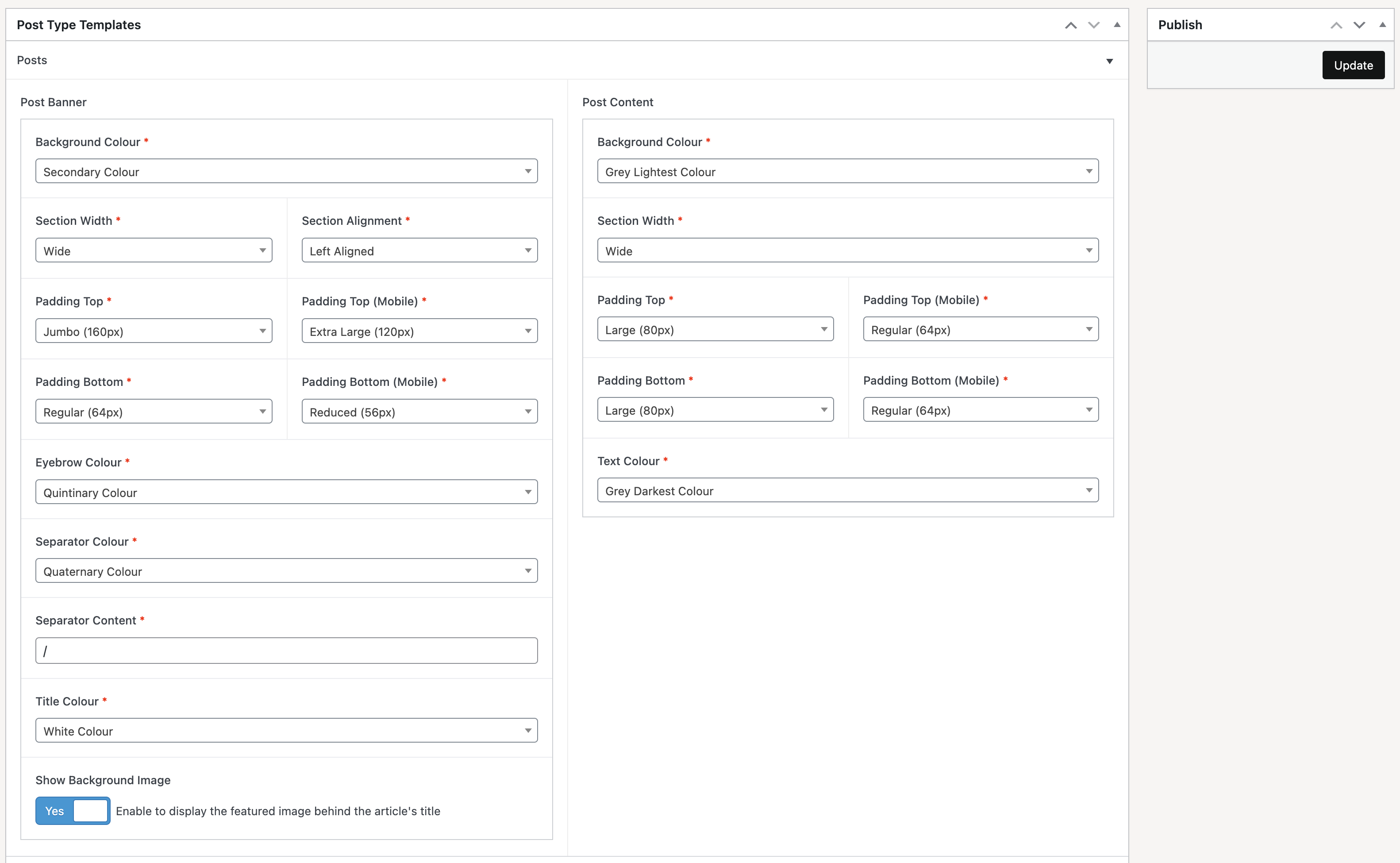
Customisation options include background colours, text colours, section widths, and spacing.
Administrators may also choose whether to display the article’s featured image as the banner’s background, or display a solid background colour instead.
Careers
The ‘Careers’ accordion section allows administrators to set the style for individual vacancy pages, as well as determining which page to use as this post type’s archive.
If the ‘Career Archive’ field is left empty, the Careers post type will be unavailable, and will not be visible within the CMS.
Conversely, once the ‘Career Archive’ field is set, the selected page’s url will be used when determining urls for all vacancies.
This section is split into two sub-sections, allowing configuration of the post banner, as well as the actual content section, as per the below image.
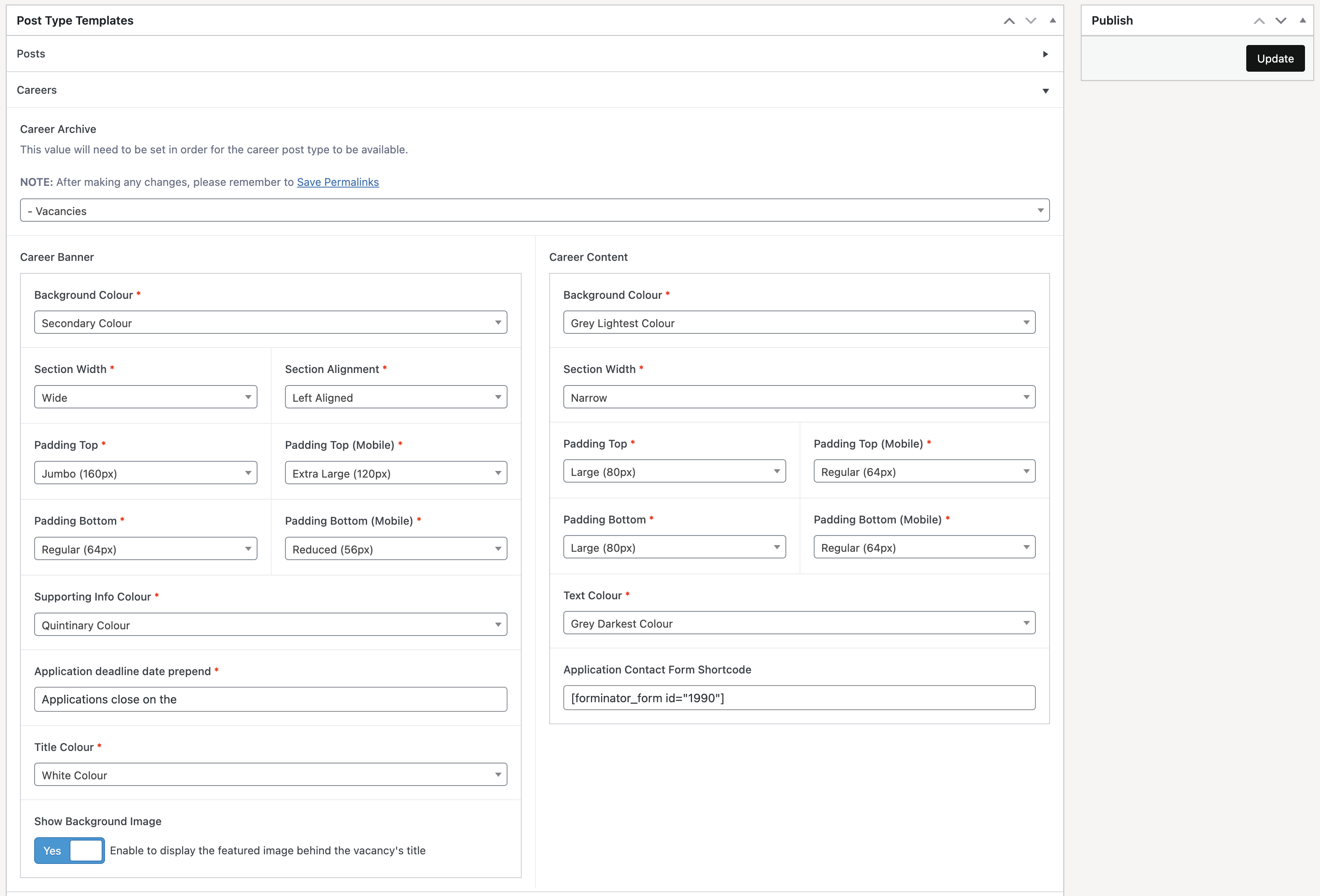
When determining the style for the vacancy’s content section; administrators may optionally paste in a contact form’s shortcode within the ‘Application Contact Form Shortcode’ field (we recommend building forms with either the Forminator or Contact Form 7 plugin). Once populated, this shortcode will be used to display a contact form beneath the vacancy’s details.
If the shortcode is left empty, no application form will be displayed.
Team Members
The ‘Team Members’ accordion section allows administrators to set the style for individual team member pages, as well as determining which page to use as this post type’s archive.
If the ‘Team Member Archive’ field is left empty, the Team Members post type will be unavailable, and will not be visible within the CMS.
Conversely, once the ‘Team Member Archive’ field is set, the selected page’s url will be used when determining urls for all team member profiles.
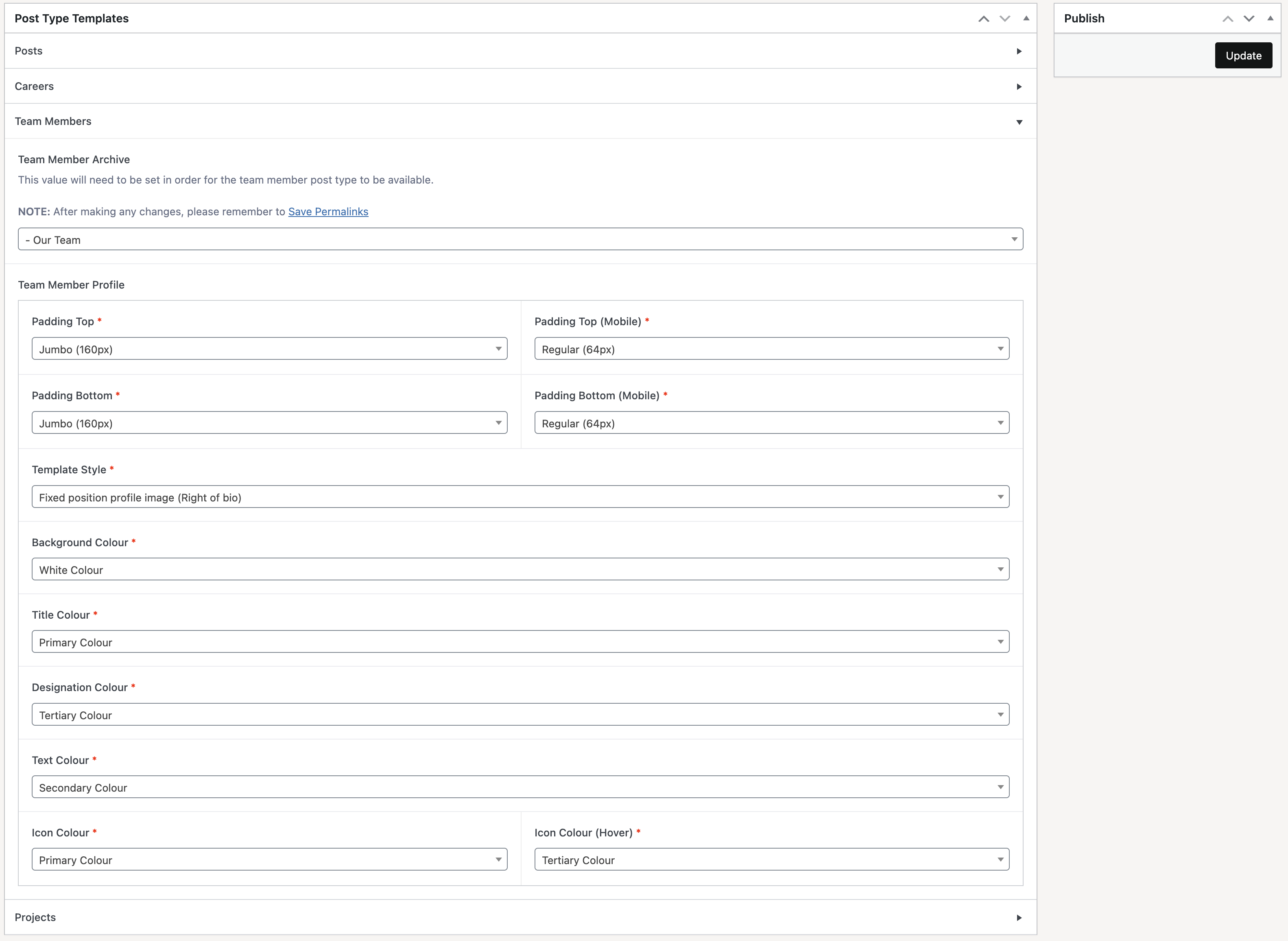
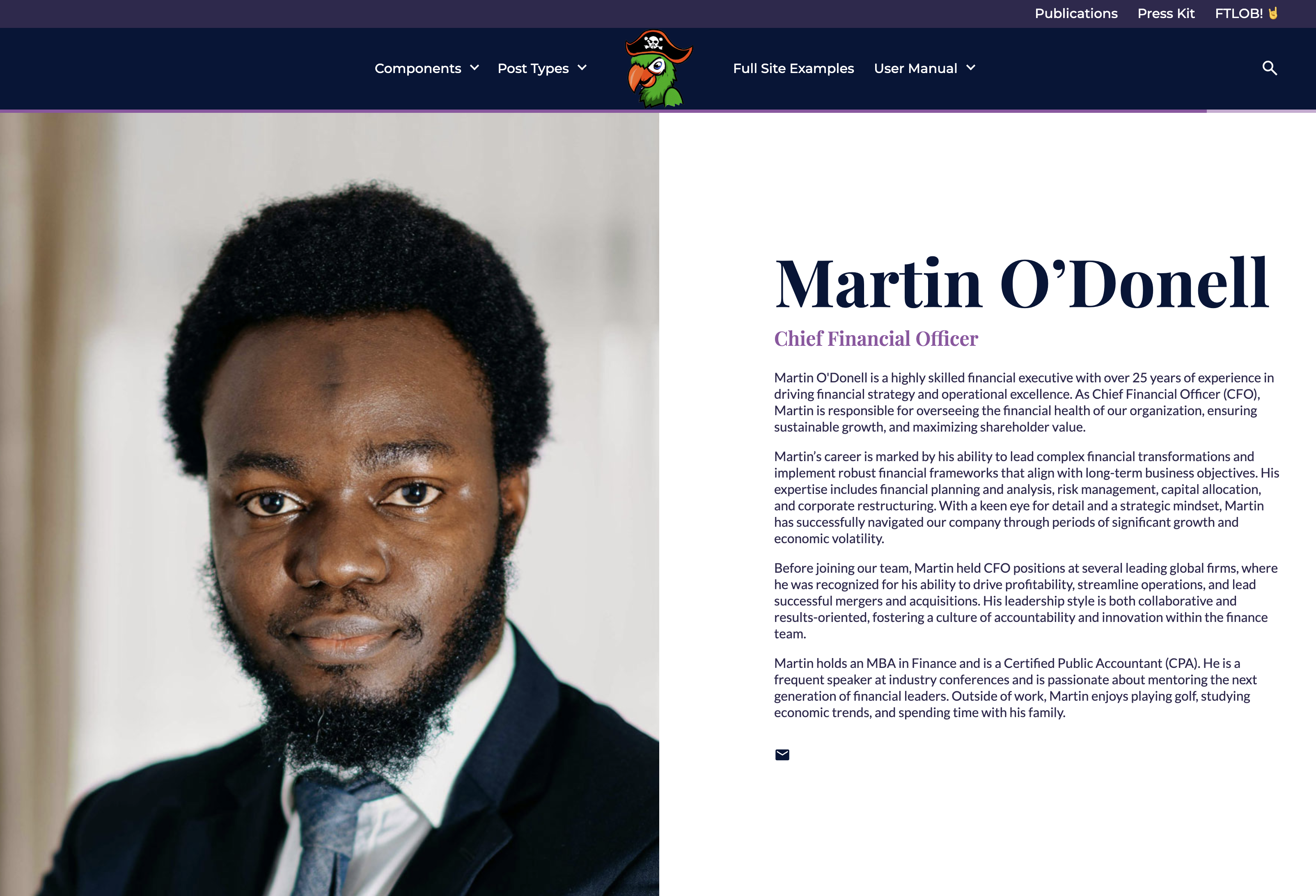
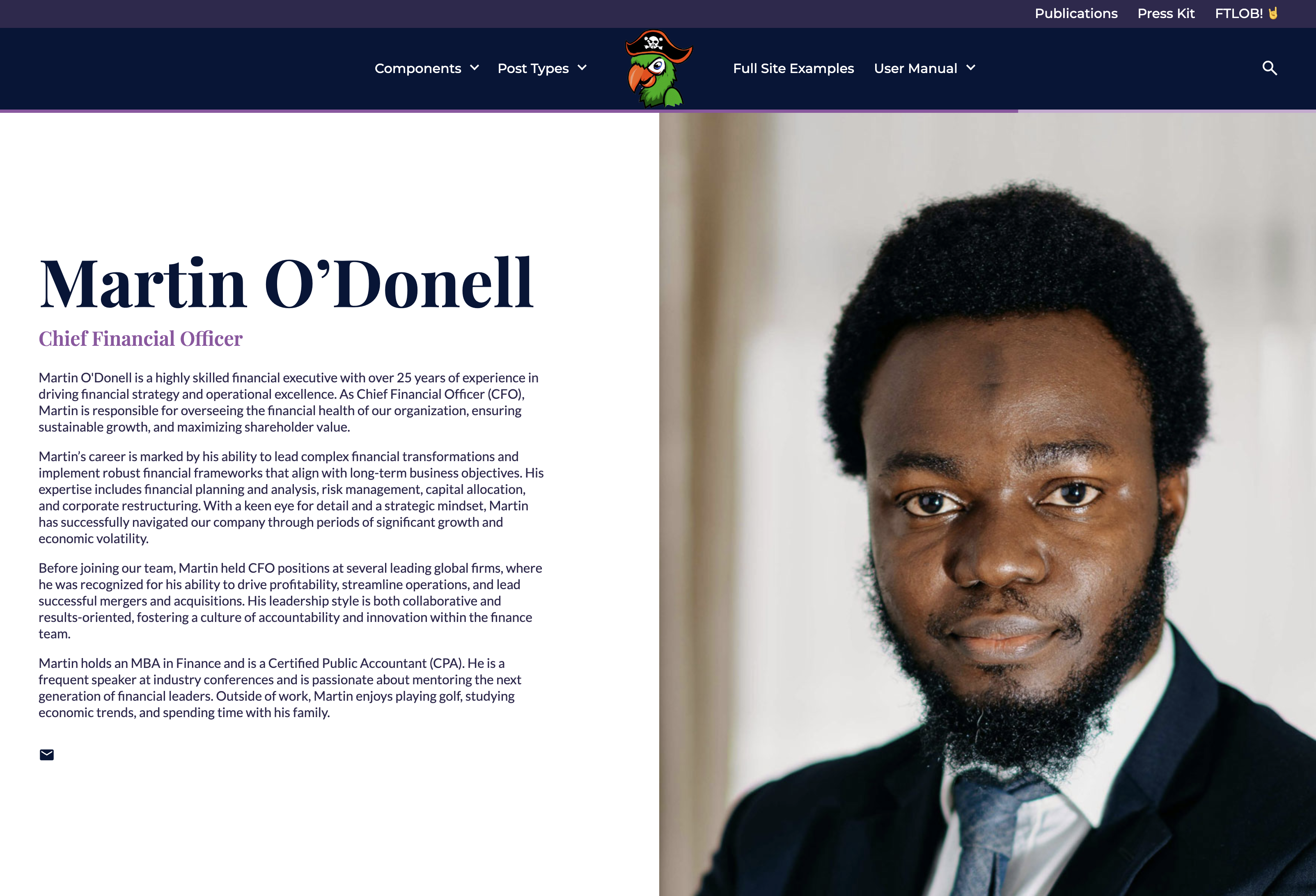
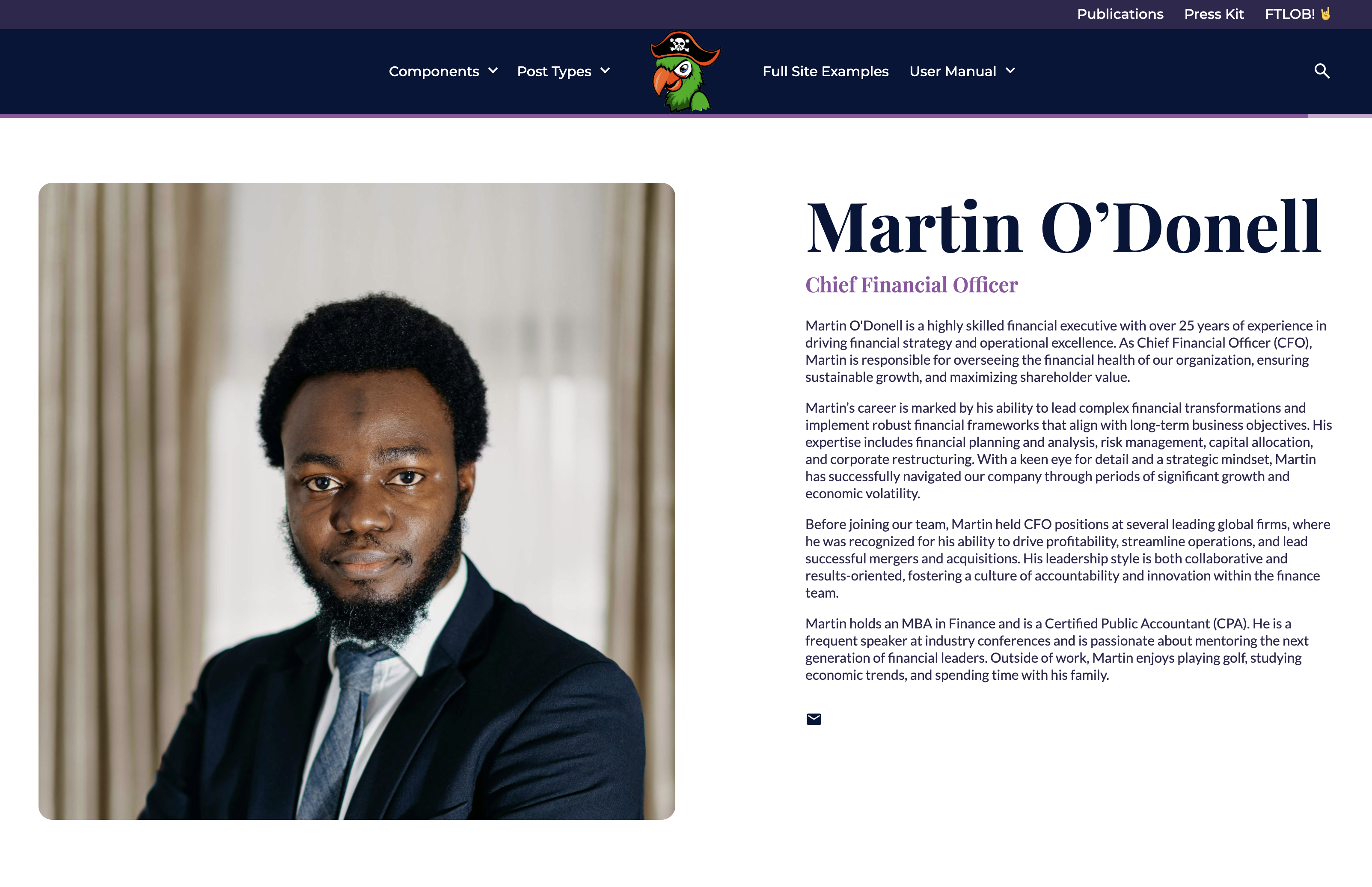
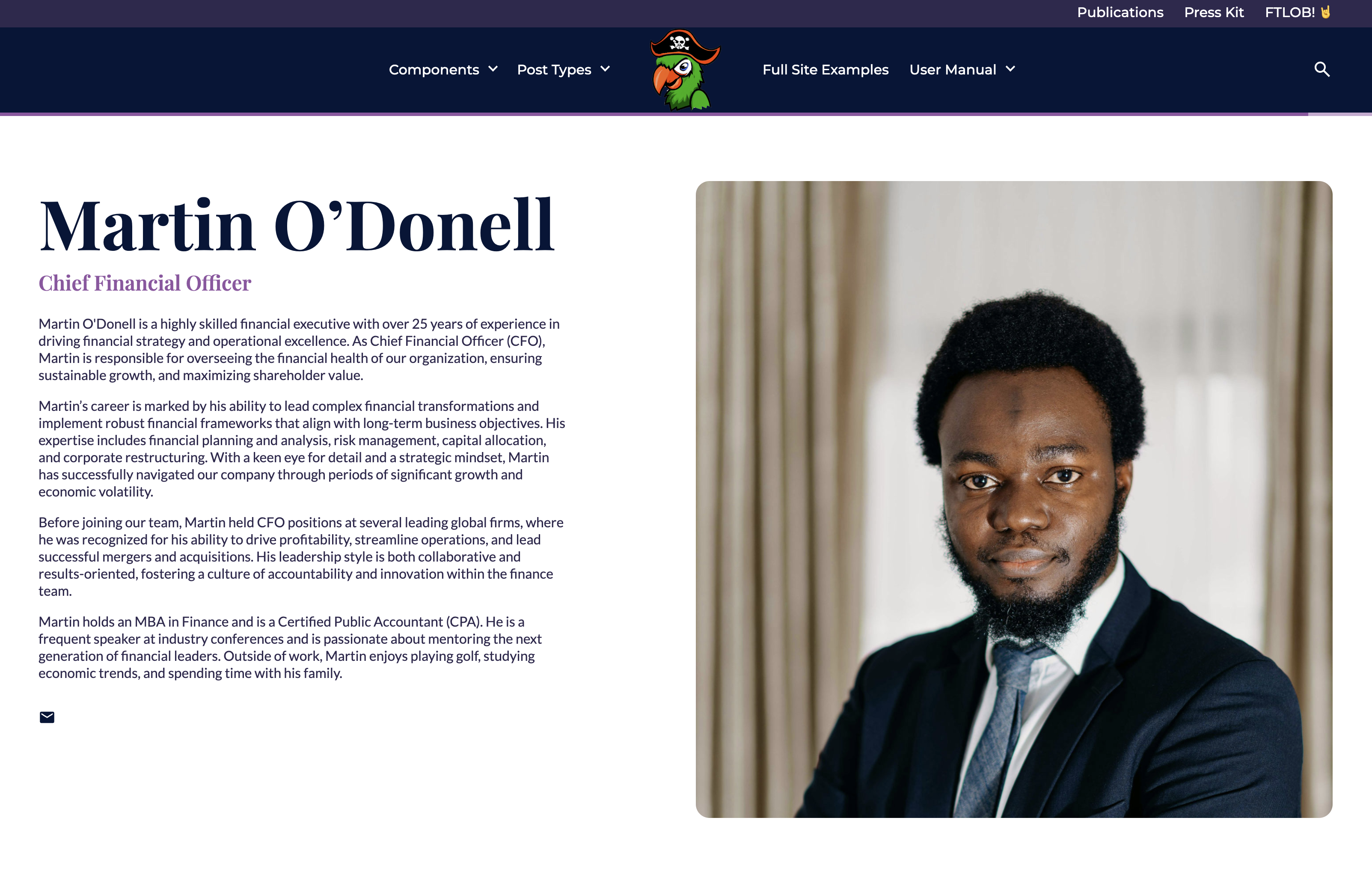
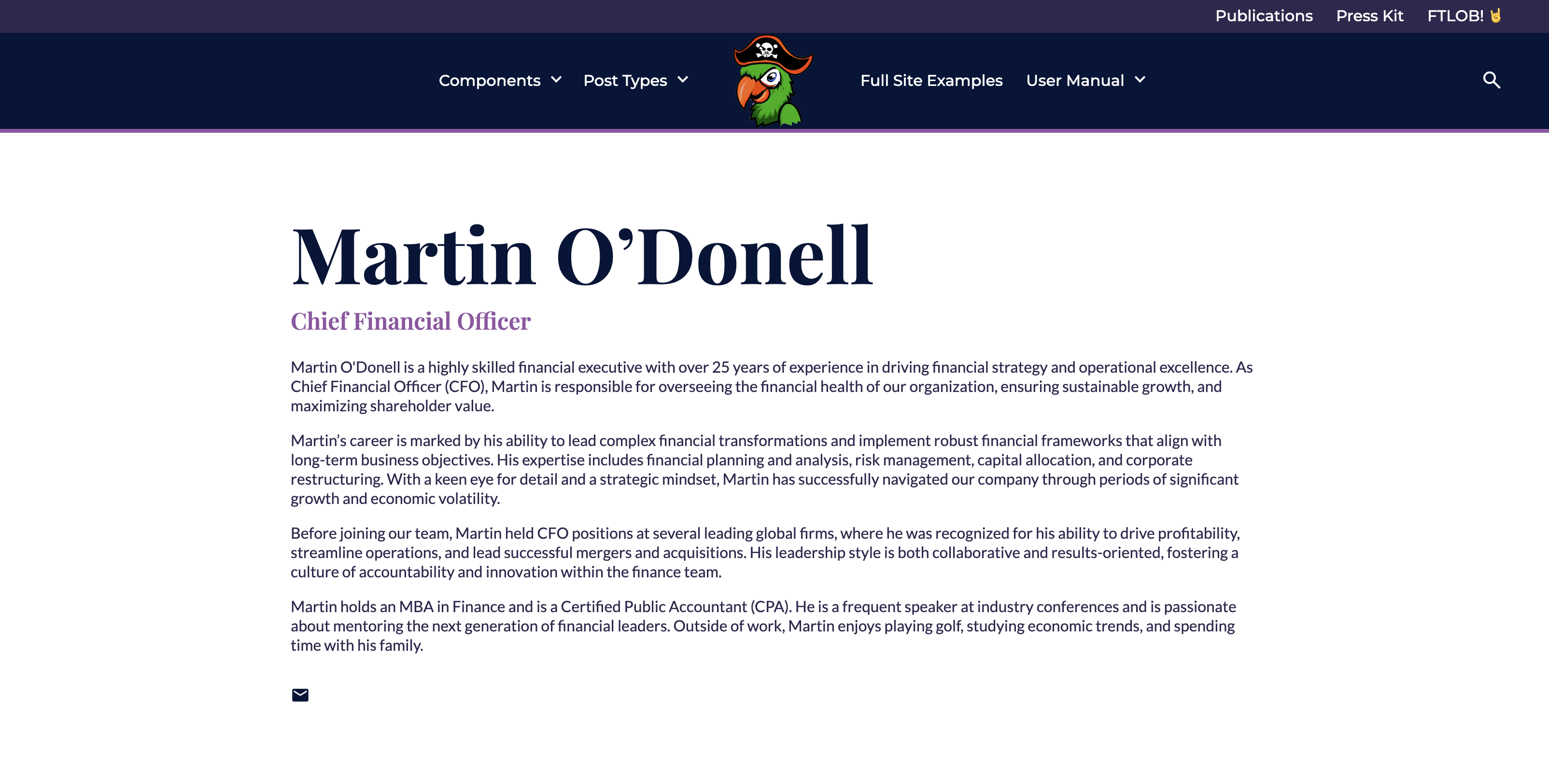
Administrators may also choose which team member profile style to use, with 5 styles being available, namely:
Fixed position profile image (Left of bio)
Fixed position profile image (Right of bio)
Contained profile image (Left of bio)
Contained profile image (Right of bio)
No profile image
Projects
The ‘Projects’ accordion section allows administrators to set the style for individual project pages, as well as determining which page to use as this post type’s archive.
If the ‘Project Archive’ field is left empty, the Projects post type will be unavailable, and will not be visible within the CMS.
Conversely, once the ‘Project Archive’ field is set, the selected page’s url will be used when determining urls for all projects.
This section is split into two sub-sections, allowing configuration of the post banner, as well as the actual content section, as per the below image.
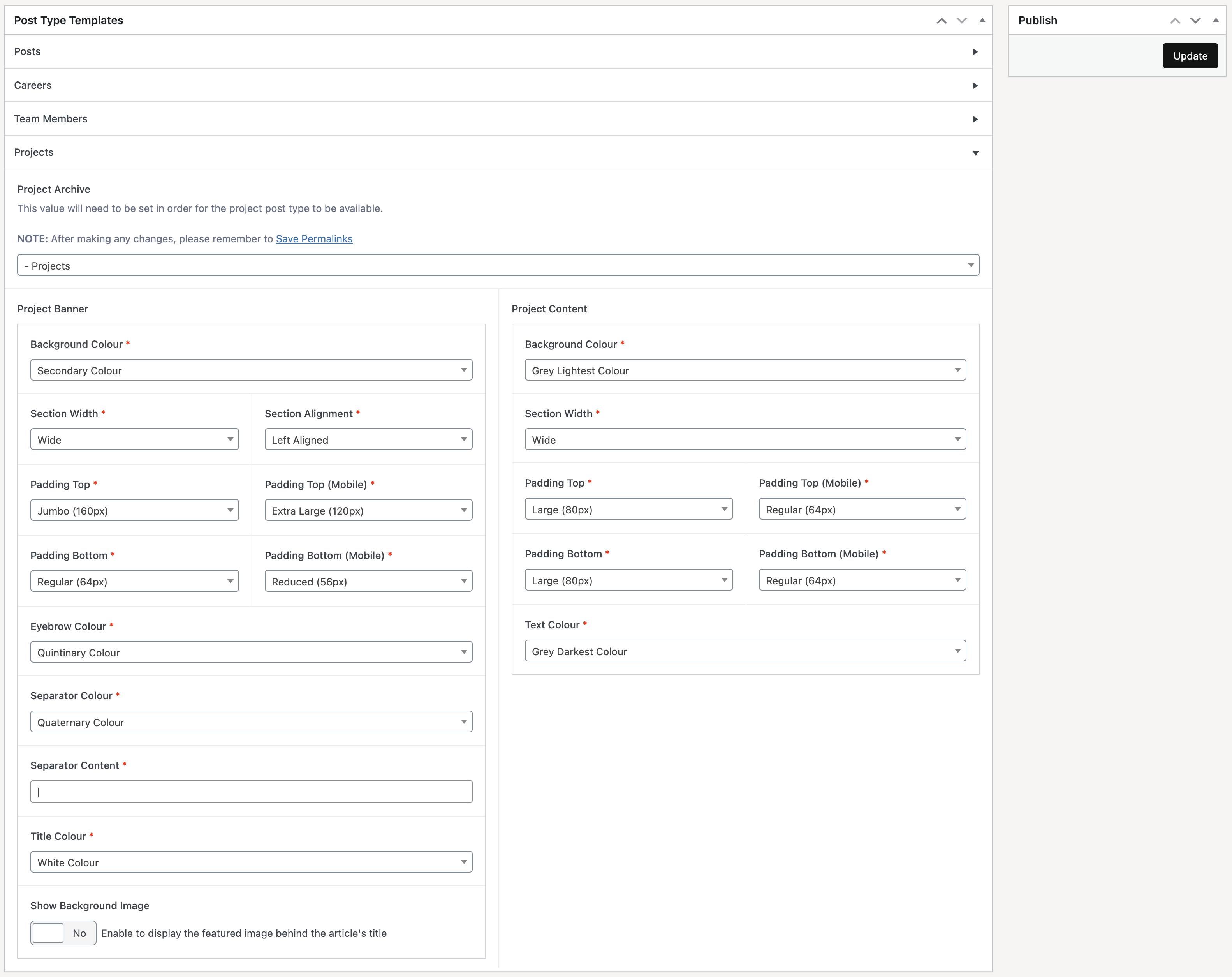
Customisation options include background colours, text colours, section widths, and spacing.
Administrators may also choose whether to display the project’s featured image as the banner’s background, or display a solid background colour instead.