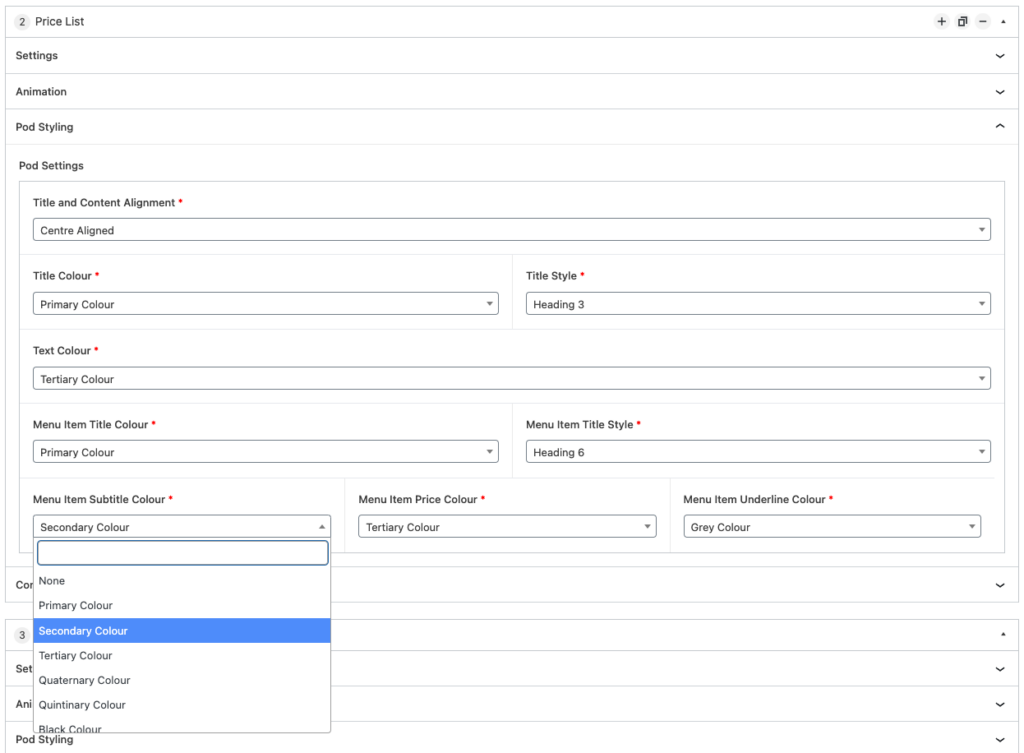
Brand Colours
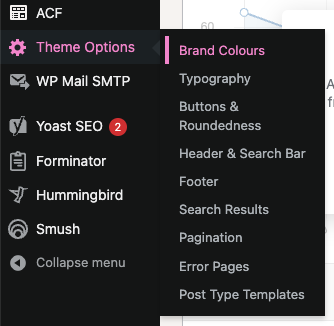
To assign your brand colours, hover over ‘Theme Options’ within the sidebar, and select the ‘Brand Colours’ option within the submenu.
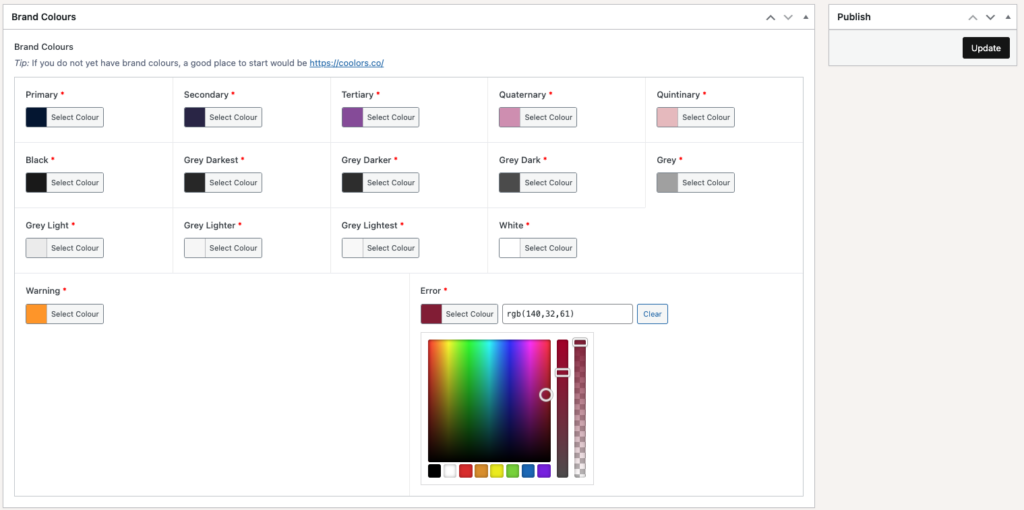
This will direct you to a new page, similar to the below, where up to 5 brand colours, along with greys and ancillary (warning / error) colours may be set.
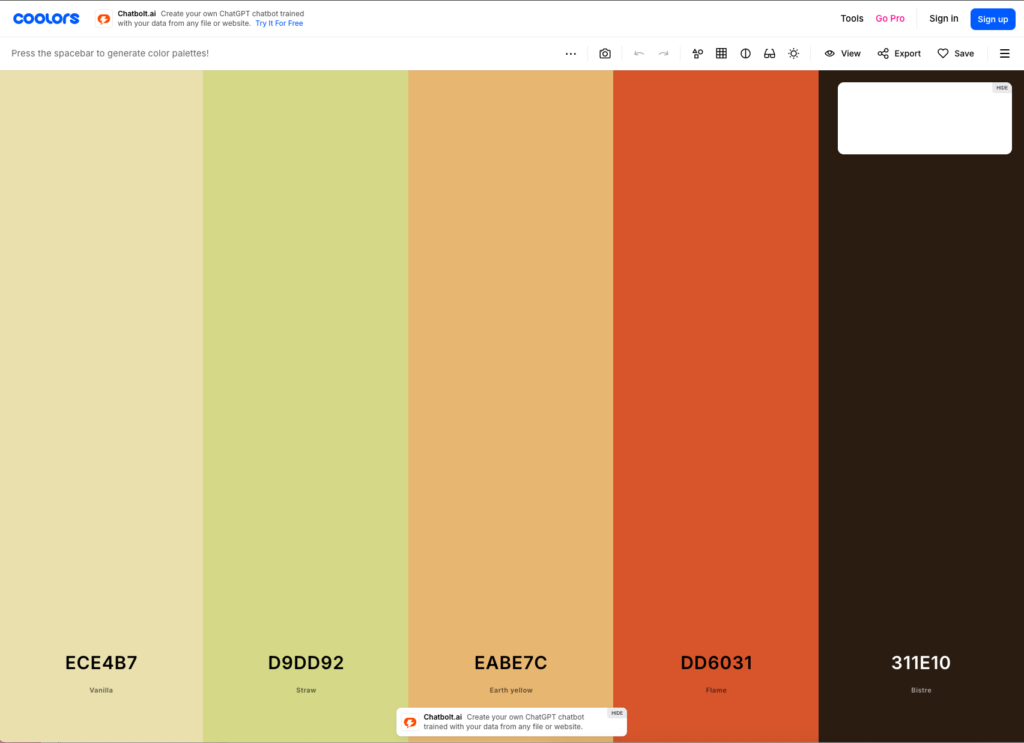
If you do not have brand colours, and are looking for something to set your brand apart, have a look at coolors.co which can generate brand palettes for you on the fly!
Once brand colours have been configured, click on the ‘Update’ button to the right side of the screen in order to save any changes.
Note that once configured, brand colours may be selected as background / text / foreground colours across all applicable components, along with the navigation bar and footer.